

From Basalt Learning
A space for students to show what they truly know.
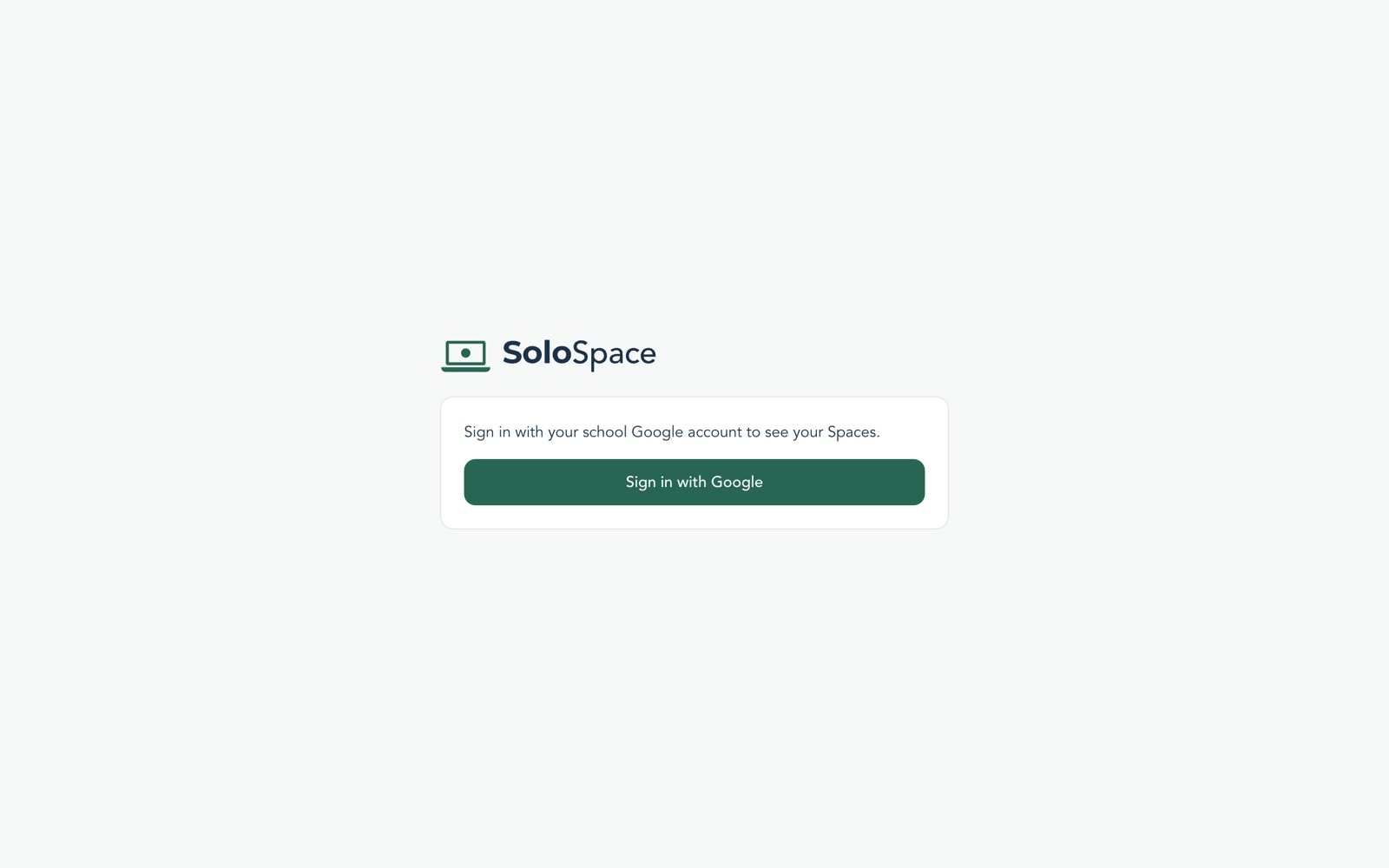
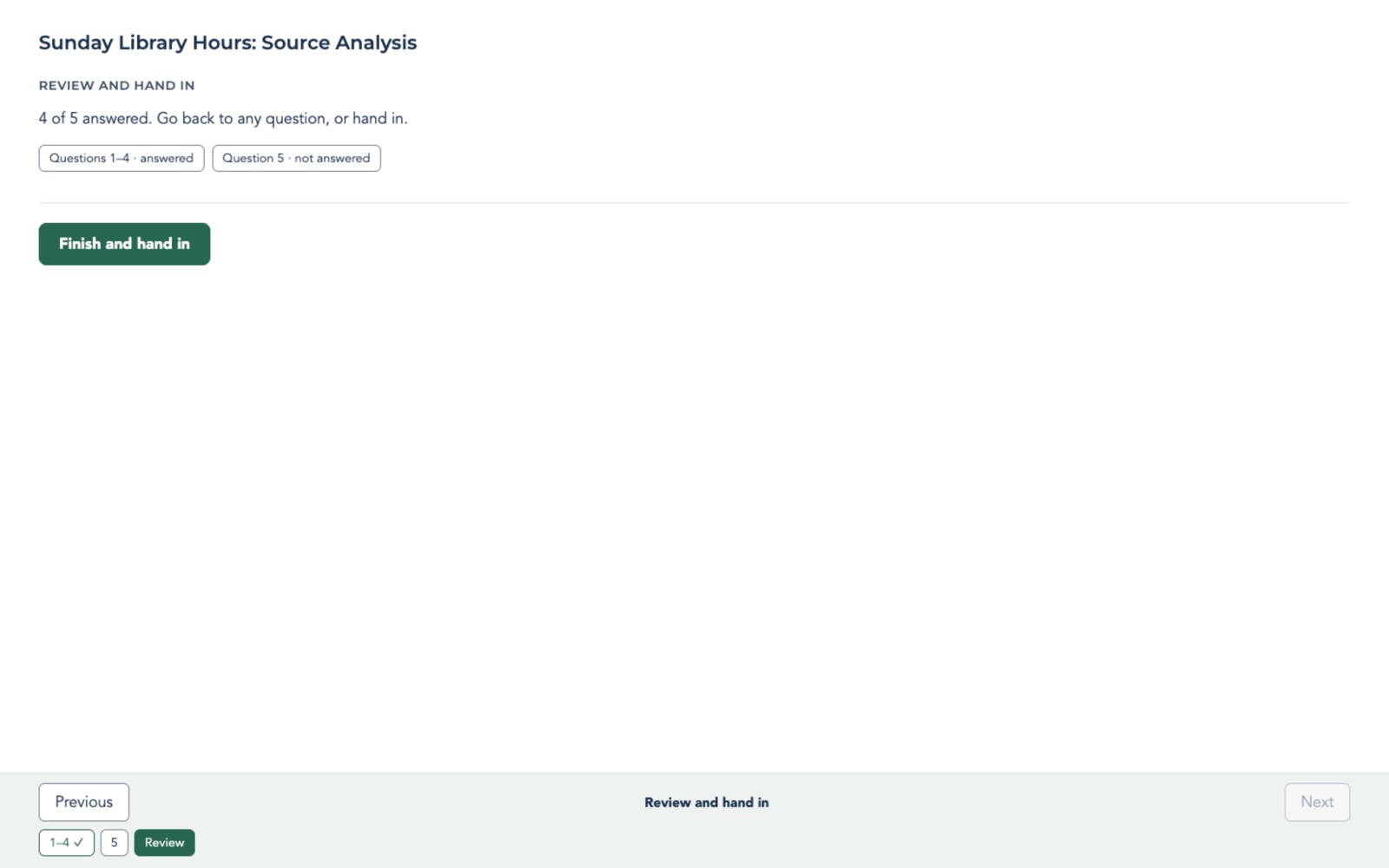
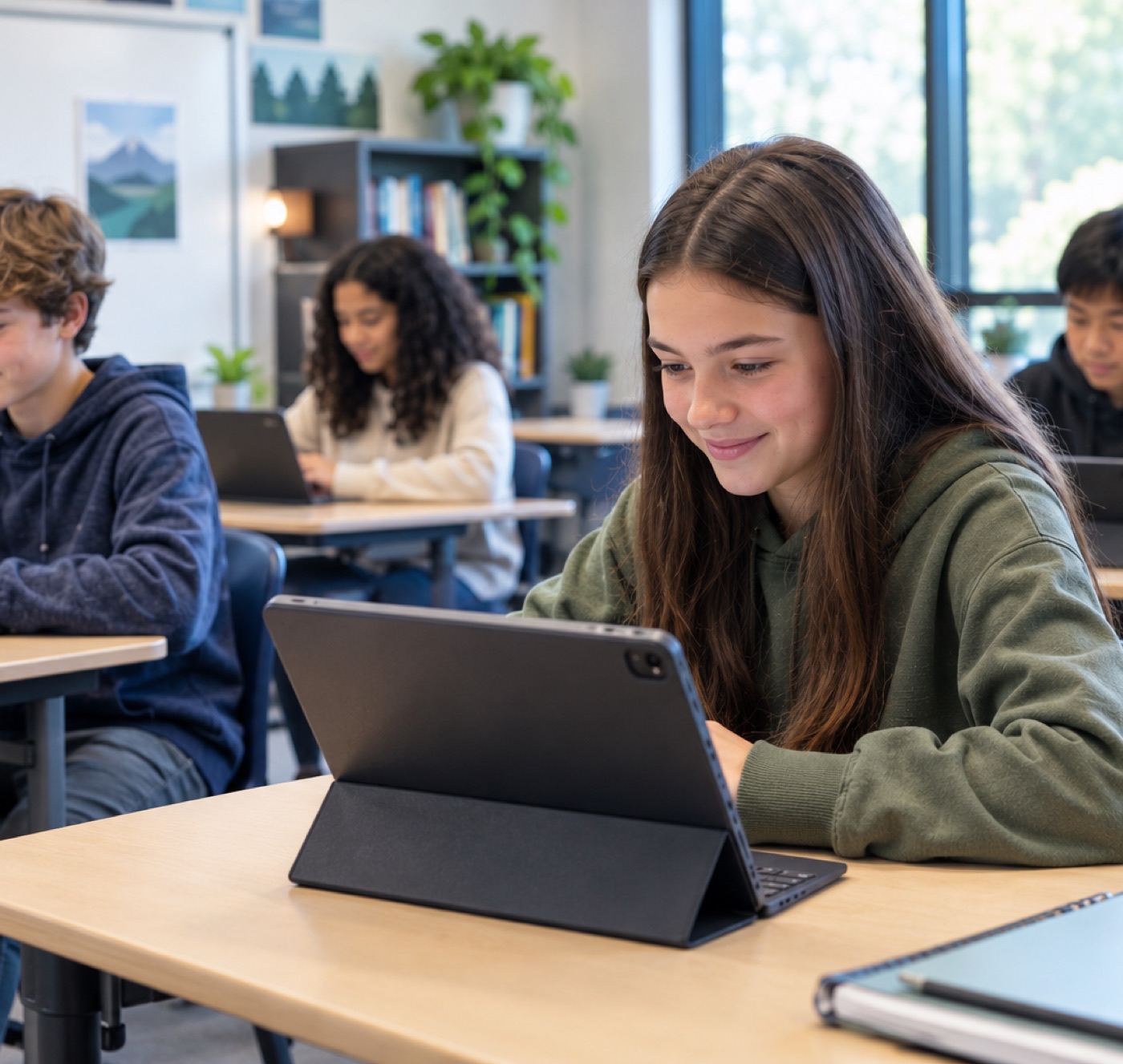
Teachers create a space for any assignment, from a reflection question to a unit test. Students enter it on a device that sets everything else aside, focus on their own work, and hand it in. Then the device goes straight back to normal.
The student experience
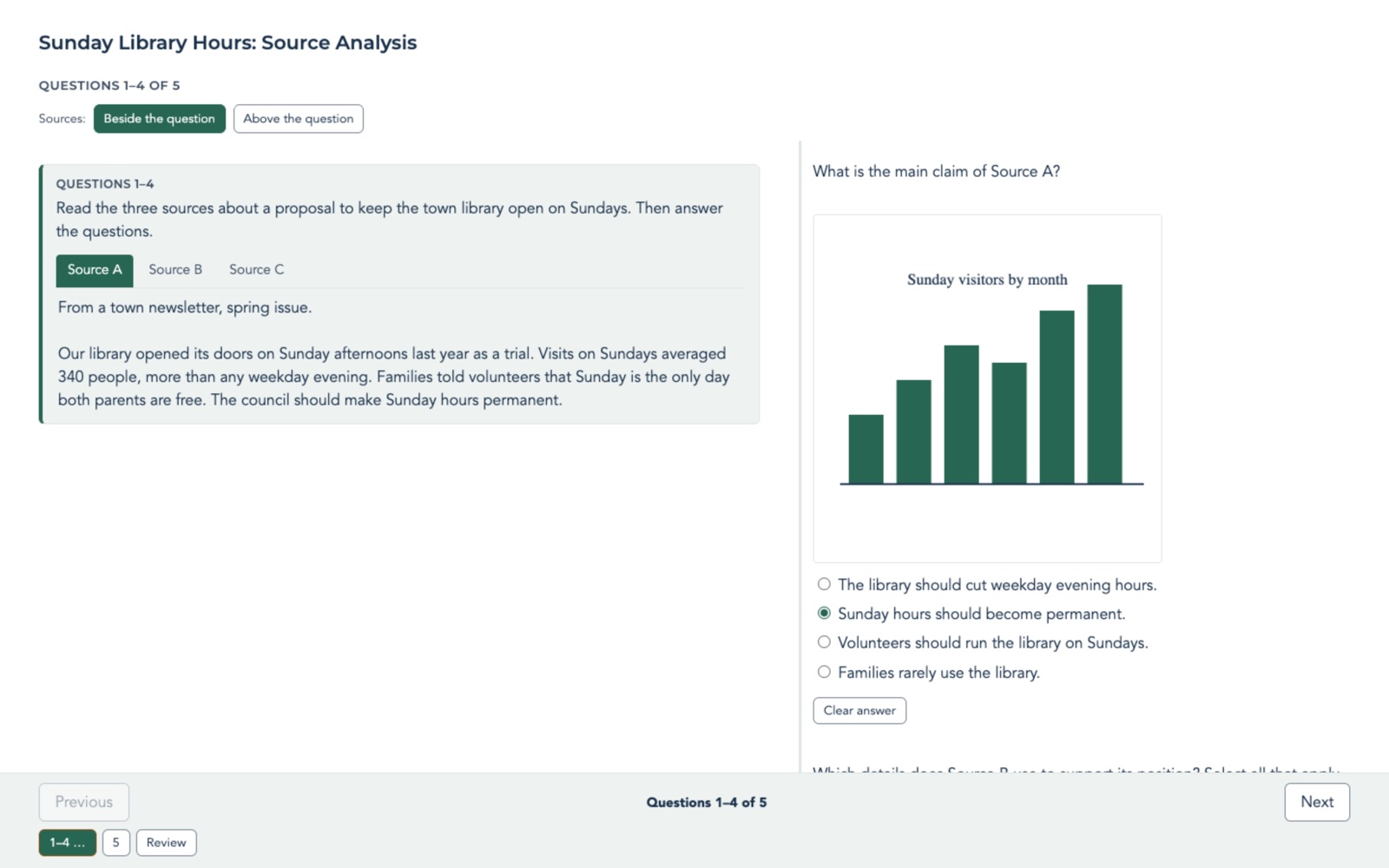
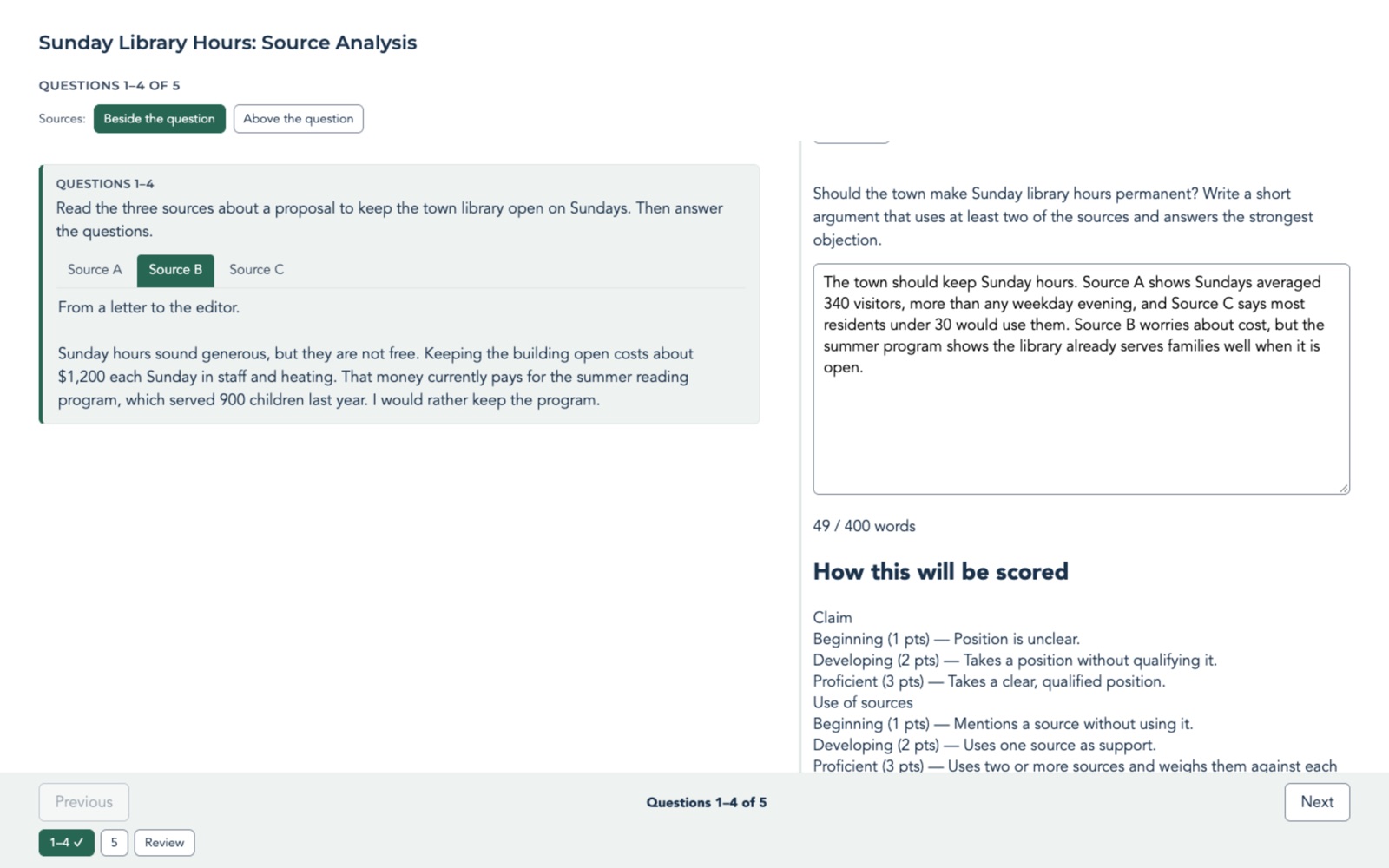
Room to focus. Nothing else.
Why a space
Sometimes the work needs to be the only thing in the room.
Student laptops open onto everything: search, messages, AI assistants, and every other tab. That is useful most of the day. But when a teacher needs to see what each student understands, in their own words and their own work, outside influence gets in the way.
SoloSpace lets teachers create a space for those moments. Inside it, the student has the assignment, the tools the teacher allows, and nothing else. Nothing in. Nothing out. Just the work.
What a space can hold
Any assignment where you want to see the student's own thinking.
Teachers will often use SoloSpace for tests and quizzes, but a space works for any assignment that should reflect what a student knows on their own.
Tests and quizzes
The most common space: a unit test, a weekly quiz, or a quick check, with nothing else on screen.
Essays and written responses
Students write in their own words, without a search bar or an AI assistant one tab away.
Reflection questions
A quiet place for students to think through what they learned and how they got there.
Math practice
Practice problems with a built-in math keypad and drawing tools for showing work.
Reading responses
Passages with up to 12 labeled sources beside the questions, all inside the space.
Exit tickets and checks for understanding
A few short questions at the end of a lesson, answered by each student alone.
Nine question formats make it possible: multiple choice, select-all, short answer with math, essay, matching, ordering, hotspot on an image, drawing, and fill-in tables.
How it works
The teacher creates the space. The student steps in, focuses, and hands in.
-
Create the space
Write the assignment, import an existing PDF, or draft questions with AI.
-
Open it to your class
Students sign in with their school account and enter a short code.
-
Watch the room
See who has joined, who needs attention, and adjust time for one student or the whole class.
-
Review and send
Approve automatic and AI-suggested scores, then send grades to the gradebook.
Built for everyone involved
Teachers see real understanding. Students get room to focus. Districts keep control.
For teachers
- Build any assignmentNine formats, math typesetting, images, and passages with up to 12 sources
- Import from PDFExisting assignments come in as editable drafts
- Live viewProgress, who needs attention, and a view of a student's screen on request
- Stay in controlAdjust time, close a space, or pass work back for another try
- Class insightsA plain-language read of what the class understood (with SoloSpace+)
For students
- Room to focusThe device shows only the assignment until it is handed in
- Work is never lostAnswers save as they type, even through a dropped connection or a crash
- Built-in toolsMath keypad, drawing tools, read-aloud, speech-to-text, zoom, and contrast where allowed
- Instant feedbackAn optional score and answers right after hand-in, if the teacher chooses
For districts
- School sign-inStudents and staff use their school accounts; no student passwords stored
- GradebookScores sent to the gradebook in one click
- AccommodationsSet once per student and applied in every space
- Safeguarding alertsTeachers are alerted when student writing suggests self-harm or abuse
- Device managementInstalled and configured through your existing tools
Security and integrity
A space secured by the device itself.
Every space, from a quiz to a reflection, uses the lockdown built into the student's device and managed by your district. It is not a browser trying to hide other apps. The assignment appears only inside the space, and it is gone the moment the student hands in.
-
Mac Proven
Apple's built-in exam mode, the system-level mode Apple created for high-stakes testing. Inside a space, the Mac blocks other apps and windows, web browsing, messaging, screenshots and screen sharing, system predictive text and dictation, notifications, and system menus.
-
Chromebook Coming
A single-app kiosk your district manages through the Google Admin console. Students open it from the Chromebook's sign-in screen, as they do for state testing, and the Chromebook shows only SoloSpace until they hand in. Your district's Chrome settings decide exactly what is locked, and we will help your technology team set them. In development now and running on Chromebooks.
-
iPad Planned
Apple's exam mode for iPad, the same system-level technology SoloSpace uses on the Mac.
Integrity by design
- The answer key never reaches the student's device. The student's copy has no place to hold one.
- Choices reshuffled per student on matching and ordering questions.
- An integrity timeline logs every join, hand-in, and teacher action.
- The teacher controls the end. A space closes at hand-in, at the time limit, or when the teacher closes it.
- A fresh sign-in every time, so nothing carries over on a shared device.
AI that helps teachers
AI suggests. Teachers decide.
With SoloSpace+, your district gets additional AI features that save teachers time: question drafts, standards tags, essay scoring suggestions, and class insights. PDF import and safeguarding alerts are standard for every district.
Nothing AI-generated reaches a student or a gradebook without a teacher's approval.
| Feature | What it does | Teacher control | Included in |
|---|---|---|---|
| PDF import | Reads an existing assignment, including scanned pages, sources, and charts | Every question arrives as an editable draft | Standard |
| Question drafts | Drafts up to 10 questions from a topic or an uploaded resource | Accept, edit, or discard each one | SoloSpace+ |
| Standards tags | Suggests Washington, Common Core, or NGSS standards | Accept or dismiss per question | SoloSpace+ |
| Essay scoring | Proposes a score per rubric criterion, with a reason | The teacher approves or changes it; AI never posts a grade | SoloSpace+ |
| Class insights | Summarizes class strengths and gaps | Students are pseudonymized before the AI sees anything | SoloSpace+ |
| Safeguarding alerts | Flags writing that suggests self-harm or abuse | The teacher is alerted; next steps follow school policy | Standard |
Student work is not used to train AI models. Every AI request passes a content guardrail, and every AI-assisted score records who approved it. More on our approach to AI
Accommodations
Every student's supports, in every space.
Accommodations are set once per student, by hand or imported from state testing records, and the student's device applies them automatically in every space.
- Read-aloud for assignment content and the student's own answers, with word-by-word highlighting
- Speech-to-text, on the device on a Mac and through Google's speech service on Chromebooks
- Eight color-contrast sets, an easy-to-read font option, and nine zoom levels
- Keyboard-only use throughout, including hotspot and drag questions
- Extra time per student, adjustable while the space is open
Devices and integrations
Fits the systems your district already runs.
Roster in, grades out. Here is exactly what is available today and what is coming.
Proven means in daily use with students in a public school district today.
| Device | Status |
|---|---|
| Teacher web app Any current Chrome, Safari, Edge, or Firefox. Nothing to install. | Available |
| Student Mac Managed Macs on macOS 26.4 or later, installed through device management | Proven |
| Student Chromebook Managed Chromebooks in kiosk mode | Coming |
| Student iPad Managed iPads | Planned |
| Connects to | Status |
|---|---|
| Sign-in | Available |
| Sign-in Microsoft, Clever, ClassLink | Coming |
| Rostering ClassLink (OneRoster) | Coming |
| Gradebook PowerSchool | Proven |
| Gradebook Google Classroom, then Canvas | Planned |
| Accommodations State testing records (TIDE) and manual entry | Available |
| Device management Jamf (Mac) | Proven |
Good to know
Straight answers to common questions
Is SoloSpace only for tests?
No. Tests and quizzes are the most common use, but a space works for any assignment where a teacher wants to see a student's own thinking: essays, reflections, math practice, reading responses, and quick checks for understanding.
Does a space guarantee integrity on its own?
No tool can. A space secures the device, not a phone in a pocket, so a teacher still supervises the room. SoloSpace makes that easier with the live view and the integrity timeline.
Will SoloSpace work on our Chromebooks?
Yes. Chromebook support is in development and already running on Chromebooks. SoloSpace runs as a single-app kiosk that your district manages through the Google Admin console, so how tightly the device is locked depends on your Chrome settings. We will walk through them with your technology team. iPad support is planned.
Is SoloSpace accessible?
SoloSpace is built for accommodations, including read-aloud, speech-to-text, contrast, zoom, and full keyboard use. A formal accessibility audit and published conformance report (VPAT) are planned.
Does AI see student work?
Yes, when a teacher uses AI essay scoring (part of SoloSpace+) or safeguarding checks (standard for every district), the student's writing is sent to the AI model for that purpose. It is not used to train AI models, and no AI-generated score reaches a gradebook without a teacher's approval.
Has SoloSpace been used with real students?
Yes. SoloSpace builds on open-source software created in a US public school district, where it runs an open beta across a full high school with real students and real grades. See the record
See SoloSpace with your team.
We'll walk through creating a space with your leaders, teachers, and technology staff, and answer your questions directly.